Table of Contents
Changing/Loading Paper
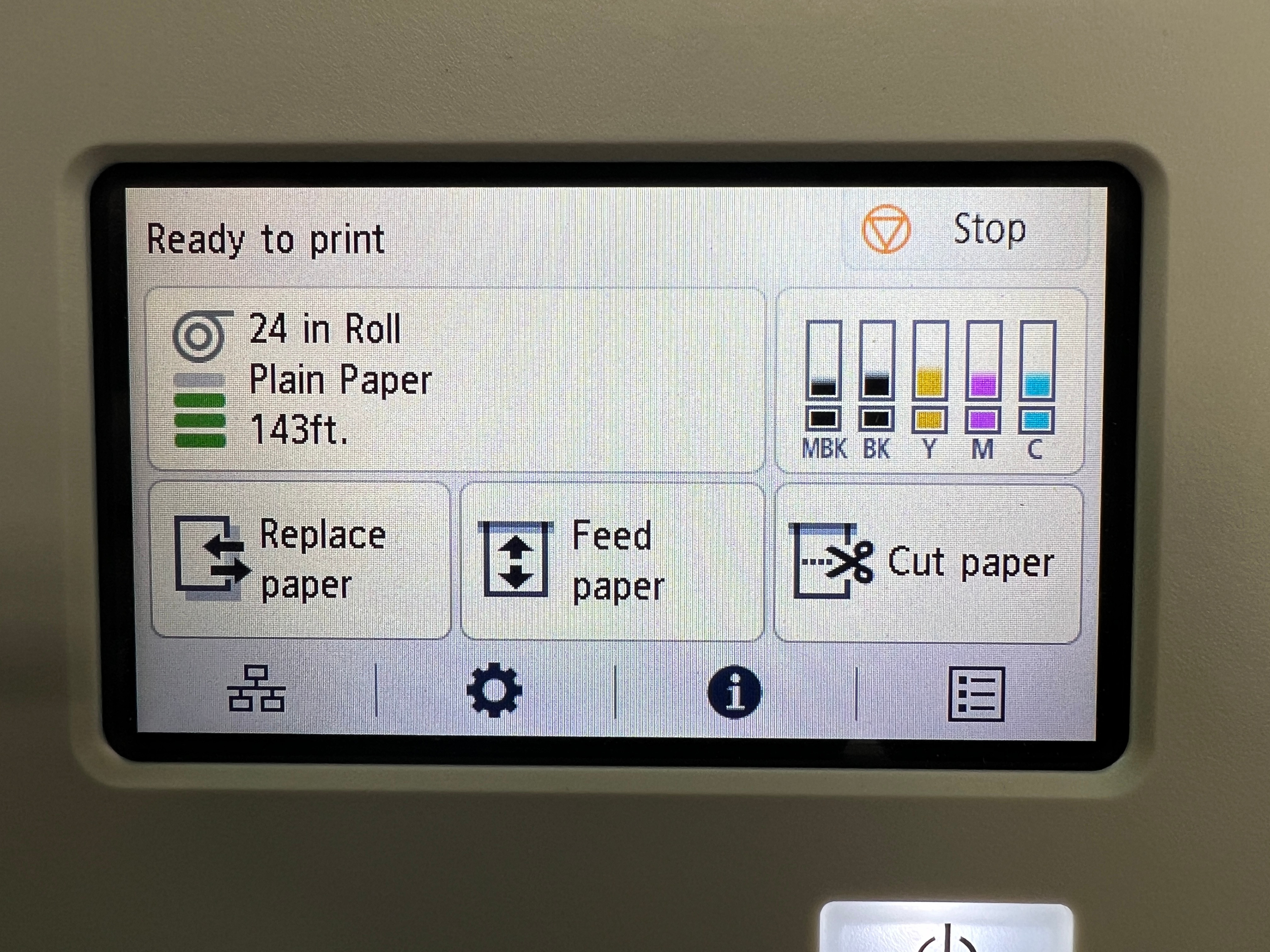
- Press the "Replace Paper" button on the display screen and follow the prompts.
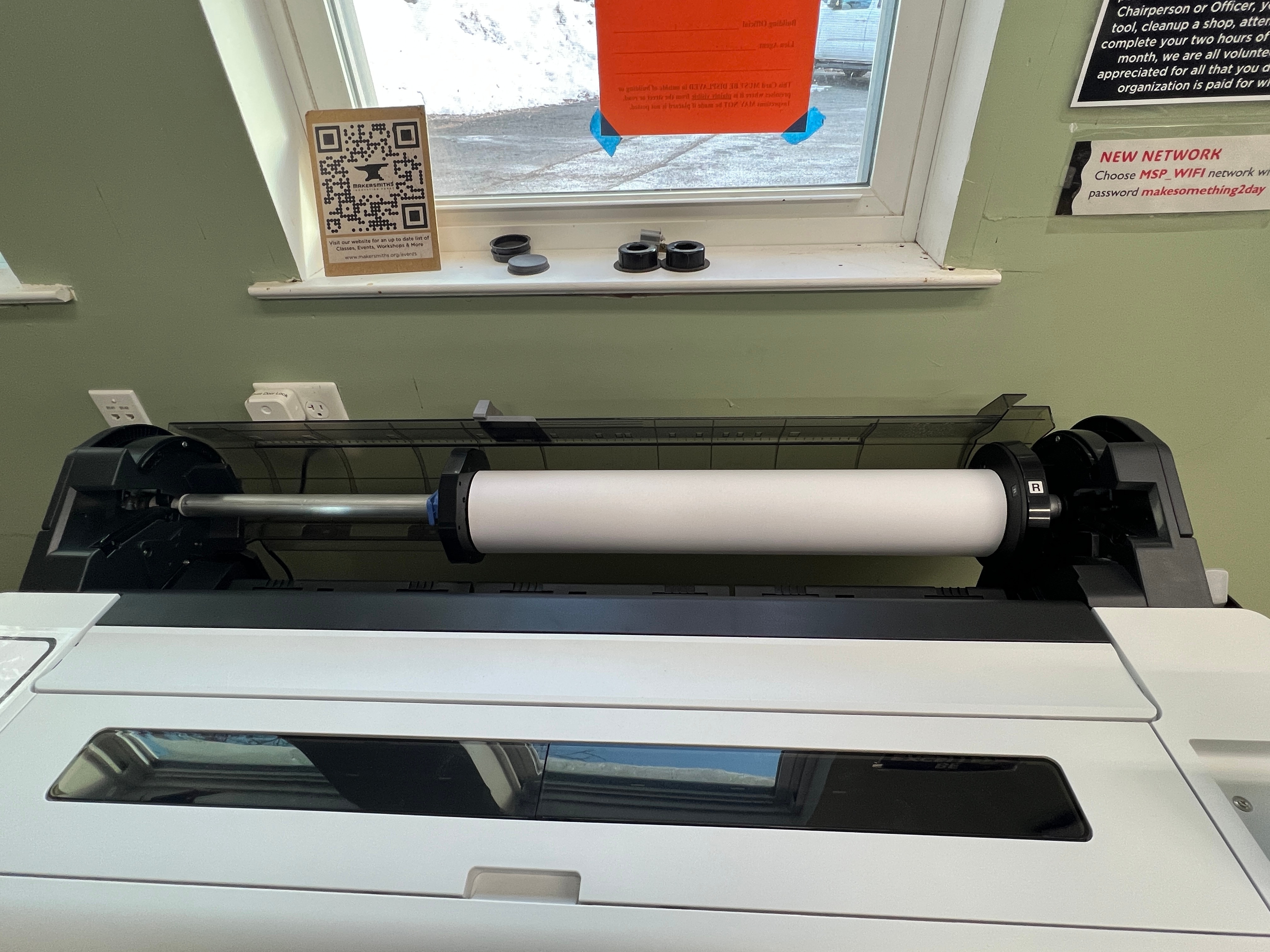
- There are two ends on the roller bar. As you are facing the machine, the right side is fixed, the left side is removable. The roller has an "R" label on the side that should be on the right as you are facing the machine.
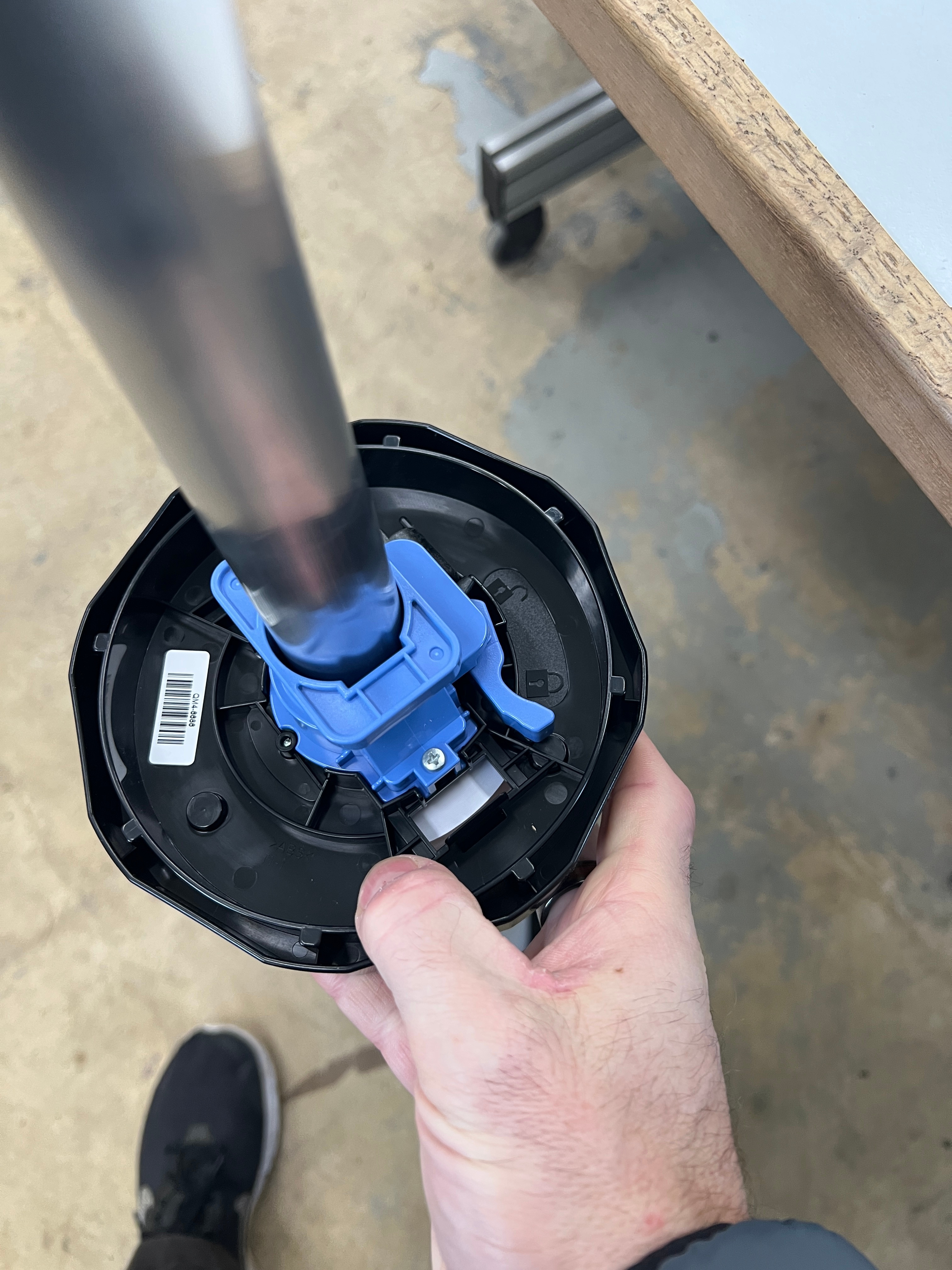
- After removing the roller from the machine, there is a blue latch on the removable (left) side. Disengage the latch and remove that side of the roll holder.
- Once removed, change the paper. The paper should be oriented such that the end of the paper is coming over the top of the roll.

- Replace the removable side of the roller holder and reengage the blue latch.
- Put the roll and bar back in the machine making sure to put the "R" labeled side on the right as you are facing the machine.
- The display screen should then prompt you to feed the paper into the machine.
- Once the paper loads, it will ask you to confirm what type of paper/material you are using.
- Getting the paper type in the right range makes a big difference in performance and smearing of your print. The basic types are:
- The free 24" paper is Bond or Plain Paper.
- If you're using the high gloss photo paper, choose one of the high gloss photo paper types.
- There are also options for Film, Technical Paper, Backlit Material, and Self Adhesive Material.
Printing
Document Creation and Avoiding Headaches with Paper Sizes
- You can create your file in any graphic design/photo editing program. You CAN enlarge or reduce your print size in the Canon Print dialog, but it's MUCH easier if your file is in the same size you want it to be when printed.
- If that graphic design/photo editing program is on the PC attached to the printer, you can print from that program to the printer. HOWEVER, printing from some programs such as Inkscape that first rely on the built in Windows print dialog can be tricky to get right.
- The easiest way to save your file as a PDF (either on the Makersmiths PC or at home) and open that PDF on the PC attached to the plotter - IN ADOBE READER. Opening PDFs in a web browser can be tricky because the print dialogs for the browsers don't always work properly.
- If you decide to print from a program other than Adobe Reader, you need to make sure that the Print Size is the same as your file. If you are using standard paper sizes, this isn't a problem. If you are doing a custom size such as 36w X 12h and Custom Size isn't an option in the print dialog, you will run into problems because the document size that makes it into the Canon Print dialog will be wrong.
- It's recommended to stay away from trying to print from Microsoft Office programs because they have historically not scaled correctly to the required print size and because we don't have Microsoft software on the machine. If you are using Microsoft software at home, save as a PDF in the size you want to print and bring the PDF in for printing.
- If you want to use Google Docs, the papers sizes are limited to standard US and international paper sizes in the Docs, so these will work for further printing. It is still recommended that you save to PDF and print from Adobe Reader as the print dialog in Google Chrome (assuming you are using Google Docs in Google Chrome) does not always work properly.
Printing from the Attached Computer
The following instructions are not exhaustive of all the ways or programs from which you can print. You are welcome to try to print from different programs than as outlined below, but you may have more difficulty than you want. You may have to try different settings than those below but ALWAYS make sure that "Preview before printing" is selected per the instructions below so you avoid wasting ink and material on prints that are not the correct size or laid out on the paper properly.
- Save the document you want to print, in the size you want to print it, as a PDF.
- Open your print in ADOBE READER. Opening it in a browser usually makes the process more complicated than it needs to be when you can just as easily open it in ADOBE READER.
- Press CTRL-P or press the Print icon in the upper right corner.
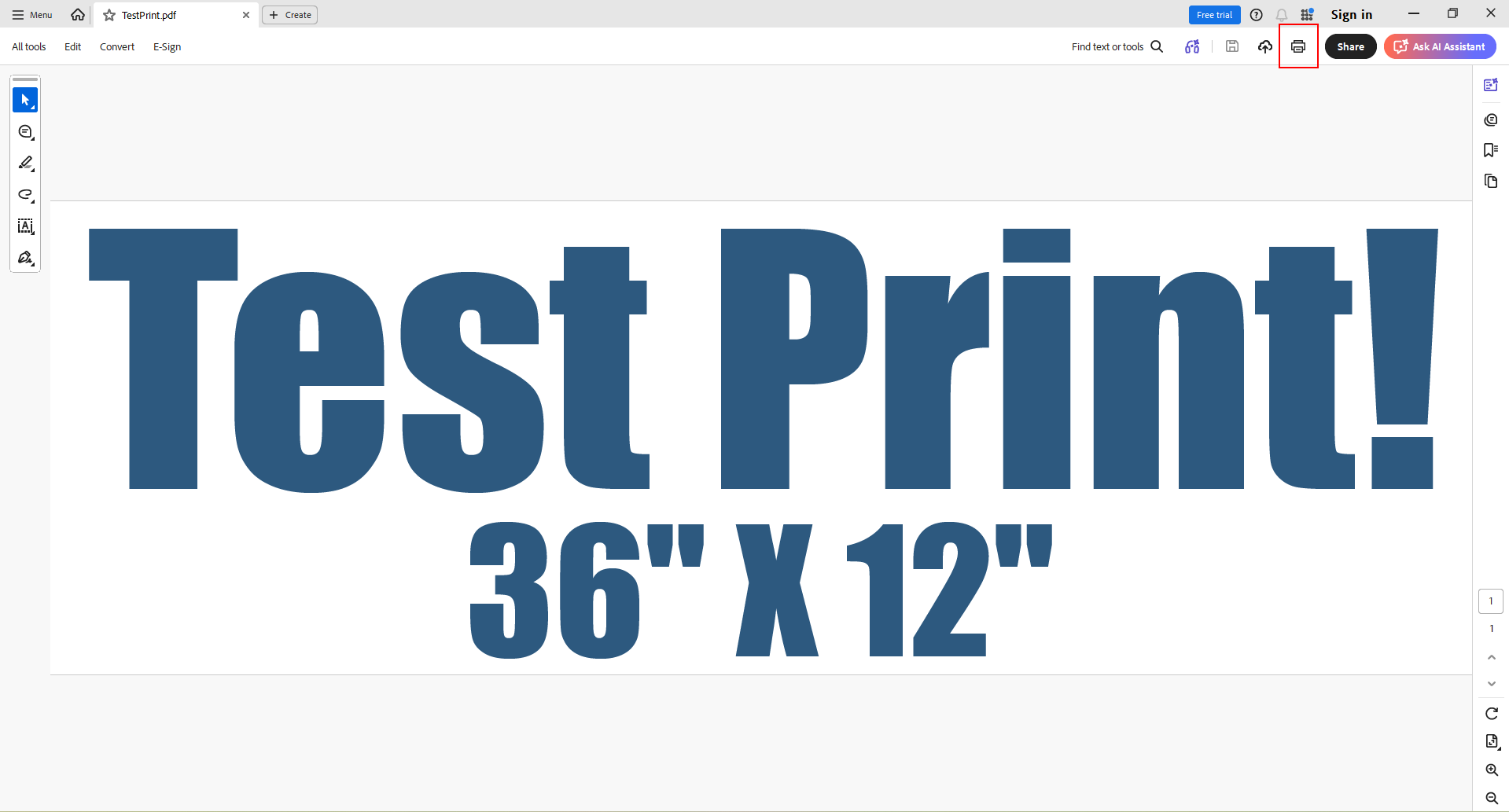
- Select the TM-340 printer, then click "Properties"
- Click "Properties" on the following Screen
- Go to the "Page Setup" tab first. Change the Page Size to the size of your file. If it is not a standard page size, go to Custom Paper Size and and enter the actual dimensions of your project. If your artwork/file isn't the same size as the size you want to print, you can mess with the "Enlarge/Reduced Printing" settings. The easiest way to print is to make sure your artwork is the same size that you want to print.
- Once the correct "Page Size" is entered, update the "Paper Source" to match the width of the roll in the plotter. This will usually be either "24 in Roll..." or "36 in Roll..." You can adjust the "Orientation" depending on how your original file was laid out. A final "Print Preview" will let you rotate by 90 degrees later if you need to do so.
- Go back to the "Main Tab". Select your "Media Type" based on the type of paper being used. Select your "Print Target" based on your type of print. Select your "Print Quality" based on your preferences.
- ALWAYS tick the box for "Preview before printing".
- Once all of those are set, press OK at the bottom.
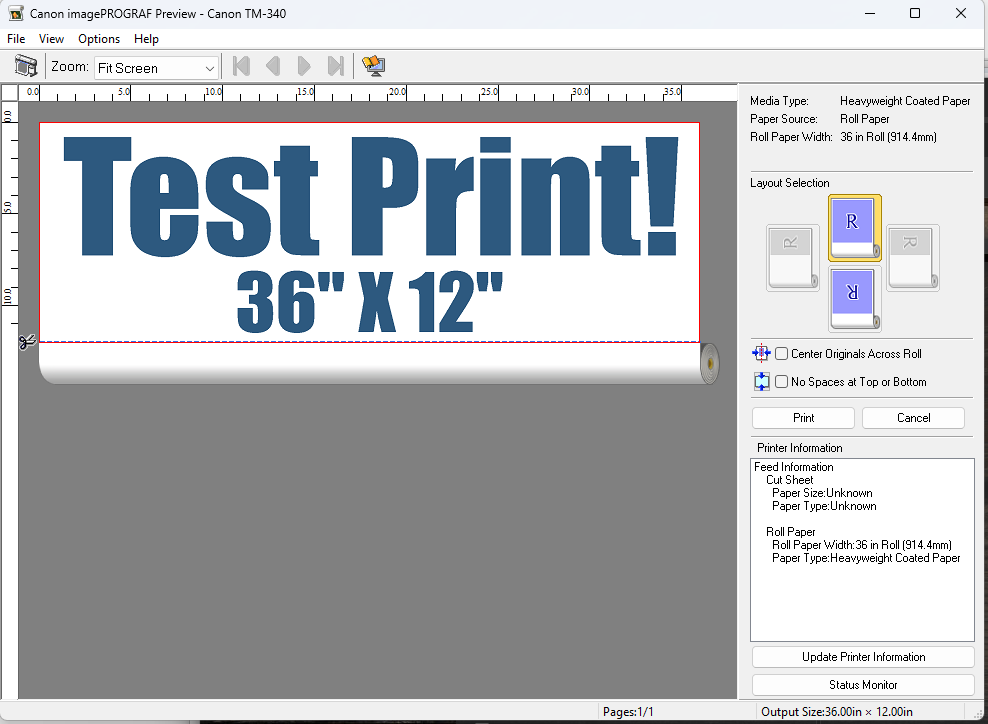
- A new Canon screen will pop up and show you a preview of your print. If it's correct, press Print. If not, try using the different "Layout Selection" options until your design looks correct. If that doesn't work, press Cancel and go back and adjust orientation, size etc. per the instructions above.
Printing from a Laptop
To plot to the plotter from your own laptop, you will have to install the TM-340 drivers and plug the USB cable from the printer into your laptop. You can download the drivers and associated Canon software from the Canon website, but depending on your laptop, it may work without additional downloads.
Inks
The ink cartridges on this machine are refillable. Do not refill ink unless you have been shown how to do so by a steward. If you see that the ink is running low, contact Jonathan White on Slack. The ink colors are
| Reservoir Ink Label | Bottle Ink Label |
|---|---|
| Black | Black |
Matte Black | MK Black |
| Yellow | Yellow |
| Magenta | Magenta |
| Cyan | Cyan |
Note that the ink indicators on the printer's display screen may not be correct after we begin refilling the cartridges.